About The Harrier Jump Jet!

THE HARRIER JUMP JET
The Harrier Jump Jet is the worlds only vertical take off and landing jet fighter. It was developed by the British in an era of financial cutbacks which saw the end of the large Royal Navy Aircraft Carriers. It can use airfields on land or fly from smaller aircraft carriers at sea and is flown by the best US and British pilots. It combines the best aspects of a helicopter with those of a fighter jet. For example, the world speed record for a helicopter is 249 mph (Linx helicopter) whilst the Harrier can fly at 730 mph.

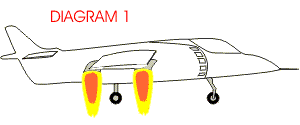
The Harriers most famous feature is its vertical take off and landing capability. Although the Harrier has one jet engine (The Pegasus) it has four nozzles that direct the jet engine thrust downwards for vertical lift. (Diagram 1)
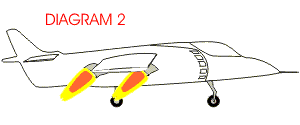


Once airborne the nozzles are slowly revolved so that the plane moves forward. (Diagram 2)


Vertical take off and landing uses an enormous amount of skill on the part of the pilot and also a large amount of fuel. The Harrier can only hover for 90 seconds, in this time it uses 150 gallons of water to keep the engine cool.


To save fuel a simple ramp allows the plane to take off on a very short runway. This is used by the Royal Navy Carriers. The planes appear to hop into the air.

Vents at the ends of each wing can be used to direct some of the thrust and this allows the pilot to move the plane left, right, forwards and backwards - whilst hovering.

How Does Galileo's Telescope Work?

A Bit of History:
Galileo Galilei didn’t invent the telescope. Even so, it was when the great Italian scientist pointed a telescope toward the night (and even the day) sky that the world changed forever.
Galileo discovered the planet Venus has phases, just like the Moon. No one could have known that until the telescope was invented. Galileo saw that the Moon had craters and mountains, and that the Sun had moving black spots on its face. He also discovered four new moons circling the planet Jupiter.

All these discoveries helped show that the Earth is not the centre of the universe, that the planets orbit a changing and imperfect Sun, and that the planets are other worlds, something like the Earth but very far away. With his telescope, Galileo literally remade the world.

Galileo’s telescope was a refracting telescope. Isaac Newton, who was born the same day Galileo died, invented another kind of telescope, called a reflecting telescope. Reflecting telescopes use mirrors instead of lenses to make faraway things look bigger. Reflecting telescopes can be made much more powerful than refractors, and Newton’s invention paved the way for all the great telescopes to come.

How It Works:
Refracting telescopes depend on one amazing fact. As light passes through glass, it slows down. Slowing down a light beam makes it bend. Why? Imagine you’re pulling a wagon along a sidewalk, when the wheels on one side slip off into the grass. The wheels turn slower in the grass than they do on the sidewalk, and the wagon moves toward the grass. In the same way, when a light beam passes through a glass lens inside a telescope, it moves toward the lens. When the light beam comes out the other side, it’s bent!

The shape of the lens means light near the top of the lens is bent down and light near the bottom of the lens is bent up. Somewhere inside the tube the light beams cross, but before they can spread out again the eyepiece lens bends the light beams again and sends them to the eye.

Because the light beams cross, the image ends up upside-down. This doesn’t matter much when you’re looking at Mars or the Moon (remember there’s no real up or down in space), but refracting telescopes used to see objects here on Earth often have another set of lenses to flip the image right-side up again.

Refracting telescopes are simpler than reflecting telescopes, but they have an important limitation. Remember that the light passing through the glass lens gets bent. It turns out that different colours are bent different amounts, and that causes the light to become unfocused. Isaac Newton solved this problem by replacing the lenses with mirrors.

When light hits a mirror, it doesn’t bend. Instead, it bounces off. Just like a ball bouncing off a wall, a light beam comes off a mirror the same way it comes in. In other words, the angle in equals the angle out. And that rule is true for all the light, no matter its colour.

The primary mirror in a reflecting telescope is curved just the right amount to bounce all the light onto the secondary mirror. From there, the light passes through the eyepiece lens, which bends the light into the eye.

Trick To Increase Browsing Speed for IE and Firefox

You really don’t need to tweak your browser in case you are using Firefox because it is a browser which has been specially designed for optimized and fast browsing but if you can make it even a little more fast that would certainly be a treat for you. Likewise there is a trick to make Internet Explorer 6 fast too. Browsers are designed to work with fast connections but with this trick even dial-up users can experience fast and smooth browsing.

Optimize Firefox and IE Browsing Speed

I shall be teaching you two tricks which work separately on Firefox and Internet Explorer. It doesn’t require you to be some expert rather all you have to do is change some registry values and you are done. I have also included a video tutorial for those who want to see it step by step visually. This is perhaps one of the oldest tricks to optimize Firefox and IE but it still works great.

Trick to Increase Firefox Speed

1. Open firefox and in the address bar write about:config and press enter
2. Double click network.http.pipelining and set it to True
3. Double click network.http.pipelining.maxrequests and set value to 10 from 4
4. Right click and create a new string nglayout.initialpaint.delay and set its value to 0

You are done. Enjoy lightning fast Firefox browsing and now for IE.

Trick to Increase Internet Explorer Speed

1. Go to Start –> Run and type regedit
2. Select HKEY_CURRENT_USER –> Software –> Microsoft –> Windows –> Current Version –> Internet Settings
3. Increase the values (DECIMAL) from default to a higher value e.g. 10

See the difference in speed of IE

Here you go with a step by step video tutorial

How Speakers Work

How Speakers Work
Driver Types:
In the last section, we saw that traditional speakers produce sound by pushing and pulling an electromagnet attached to a flexible cone. Although drivers are all based on the same concept, there is a wide range in driver size and power. The basic driver types are:

1.Woofers
2.Tweeters
3.Midrange

Woofer

Tweeter


Midrange


Woofers are the biggest drivers, and are designed to produce low frequency sounds. Tweeters are much smaller units, designed to produce the highest frequencies. Midrange speakers produce a range of frequencies in the middle of the sound spectrum.

And if you think about it, this makes perfect sense. To create higher frequency waves -- waves in which the points of high pressure and low pressure are closer together -- the driver diaphragm must vibrate more quickly. This is harder to do with a large cone because of the mass of the cone. Conversely, it's harder to get a small driver to vibrate slowly enough to produce very low frequency sounds. It's more suited to rapid movement.

How To Play Older Games On Vista & XP? !!

How To Increase Internet Speed ... It Works And I Prove It!!!

>

Speed up your connection in Windows XP!

Speed up your connection in Windows XP

By default, the packet scheduler limits the system to 20% of the bandwidth of a connection, to increase bandwidth :

1-Open Run dialog box from Start menu.
2- Type “gpedit.msc” and press Ok.
3- When Group Policy run, go to Local Computer Policy > Computer Configuration > Administrative Templates > Network > Qos Packet Schedule
4- in right side, right click on Limit reseivable bandwidth and select Properties.
5- In Setting tab under Limit reservable bandwidth section select Enabeled .
6- instead of 20 type 0 (zero) and then click ok, and close Group Policy.
7- Now , go to Network connection and right click on your connection and select Properties.
8- Go to Networking tab and cheek Qos Packet Scheduler to be ticked.
9- Restart your PC

Be Success !